

Seeing the “Error establishing a database connection” message is the ultimate nightmare for any WordPress site owner.
Unlike minor layout glitches, this critical error means your website is completely down. No pages will load, your visitors are locked out, and you cannot even access your own WordPress dashboard.
Don’t panic. In this guide, I will walk you through exactly how to troubleshoot and fix this error step-by-step, covering both basic beginner fixes and advanced server-level solutions.
What This Error Actually Means
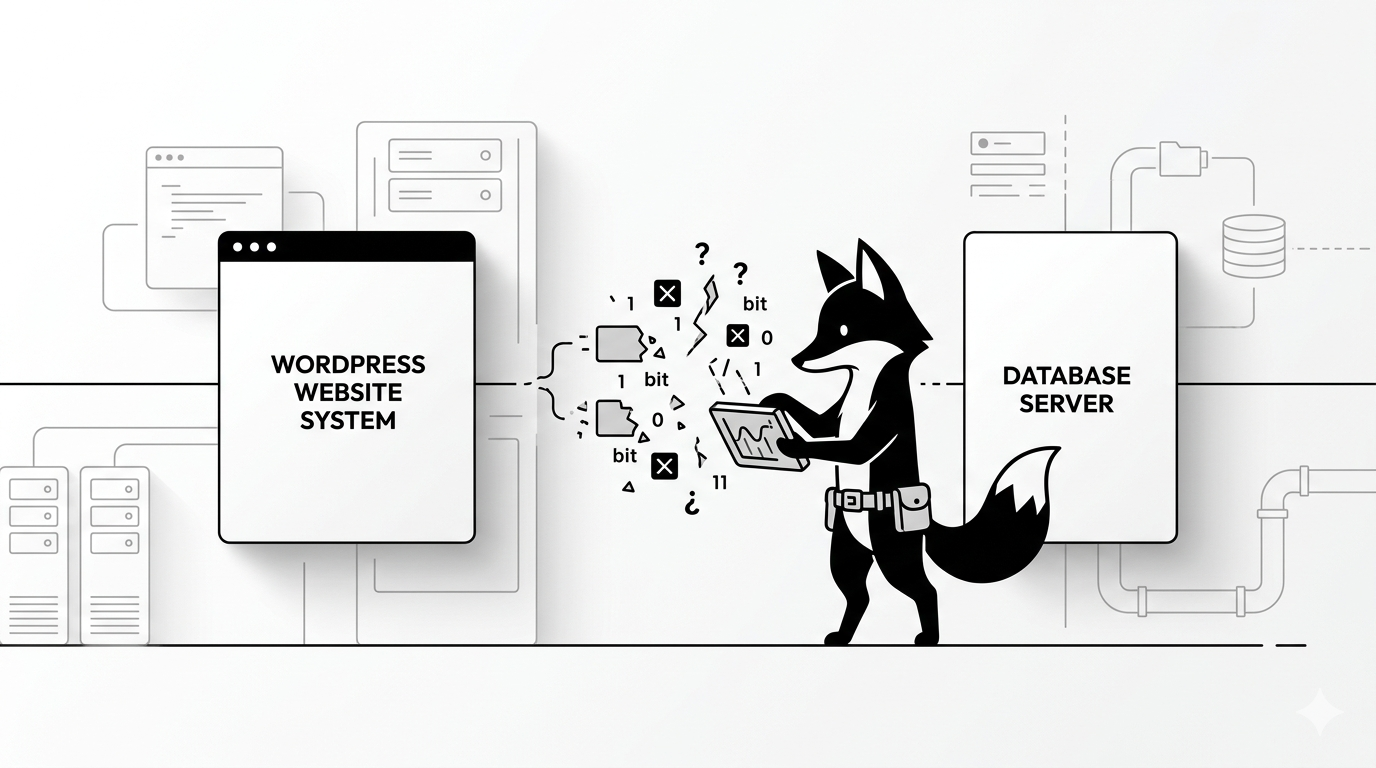
Simply put, this error means WordPress is entirely unable to communicate with your database.
Your database is the brain of your website. It stores all of your content, user accounts, plugin settings, and theme configurations. Without an active connection to it, your site simply cannot function.
STEP 1 — Verify Your Database Credentials (The Most Common Fix)
In 90% of cases, this error is caused by a wrong username or password. Open your site’s root folder, locate your wp-config.php file, and verify these exact lines:
define(‘DB_NAME’, ‘your_database_name’);
define(‘DB_USER’, ‘your_database_user’);
define(‘DB_PASSWORD’, ‘your_database_password’);
define(‘DB_HOST’, ‘localhost’);
define(‘DB_USER’, ‘your_database_user’);
define(‘DB_PASSWORD’, ‘your_database_password’);
define(‘DB_HOST’, ‘localhost’);
Check them against your hosting control panel. Even a single missing quote or extra space will completely break the connection.
STEP 2 — Restart Your Database Services (For VPS and Docker)
If you manage your own VPS or use Docker containers, the database service might have simply stalled or crashed.
Restart your database container first:
docker restart wpfox_db
Then, restart your main WordPress application container to refresh the connection:
docker restart wpfox_app
STEP 3 — Check if Your MySQL Server is Actually Running
If your MySQL service has unexpectedly shut down, WordPress has nothing to connect to. You can check its current status via your terminal:
systemctl status mysql
If the output says it is stopped or inactive, reboot the service immediately:
systemctl restart mysql
STEP 4 — Verify Your Database Hostname
While most servers use “localhost” as the database host, many managed hosting providers route databases through specific remote servers.
If “localhost” isn’t working, try replacing it in your wp-config.php file with:
- 127.0.0.1
- Your server’s specific IP address
- The custom DB host URL provided in your hosting panel
STEP 5 — Use the Built-In WordPress Database Repair Tool
WordPress actually has a secret database repair tool. To activate it, add this single line to your wp-config.php file:
define(‘WP_ALLOW_REPAIR’, true);
Once saved, navigate to this URL in your browser:
yourwebsite.com/wp-admin/maint/repair.php
You will be presented with two options. Click:
- Repair Database
- Repair and Optimize Database (Takes slightly longer, but recommended)
STEP 6 — Investigate Server Overload
If you are suddenly getting a massive spike in traffic, your server might be temporarily overloaded and rejecting new database connections.
Check your real-time server usage with this command:
top
If your CPU or RAM is completely maxed out, you will need to restart your services or contact your host to upgrade your server resources.
STEP 7 — Repair Corrupted Tables via phpMyAdmin
If the automated WordPress repair tool didn’t work, you might have severely corrupted tables. Log directly into your hosting panel’s phpMyAdmin:
- Select your WordPress database
- Check the boxes next to all of your tables
- Select “Check table” from the dropdown menu
- If errors are found, select “Repair table” to fix them
Common Causes Behind the Crash
- Entering incorrect database credentials after a site migration
- The MySQL service crashing unexpectedly on the server
- A massive traffic spike overloading the server’s memory
- Corrupted database tables from a broken plugin update
- Misconfigured routing in a VPS or Docker environment
The Final Result
- The database connection is successfully restored
- Your front-end website is fully visible to visitors again
- Your server environment is stabilized
- You know exactly how to diagnose the issue if it ever drops again
Keep Troubleshooting Like a Pro
- How to permanently fix the WordPress 500 Internal Server Error
- How to fix the 502 Bad Gateway error on your WordPress site
- What to do when your WordPress admin login stops working
- Proven strategies to drastically speed up your WordPress website
✔ This guide equips you with both the basic credential checks and the advanced server-level commands needed to confidently restore any broken WordPress database connection.
Share: