Seeing a “502 Bad Gateway” error on your live WordPress site is a frustrating, heart-dropping moment.
However, if you are running a modern VPS stack using Docker and Nginx Proxy Manager, this is actually an incredibly common and highly fixable issue. It is almost always a simple miscommunication between your services.
In this guide, I will show you exactly how to diagnose your containers, fix your proxy routing, and get your WordPress site back online in minutes.
What Exactly is a 502 Bad Gateway?
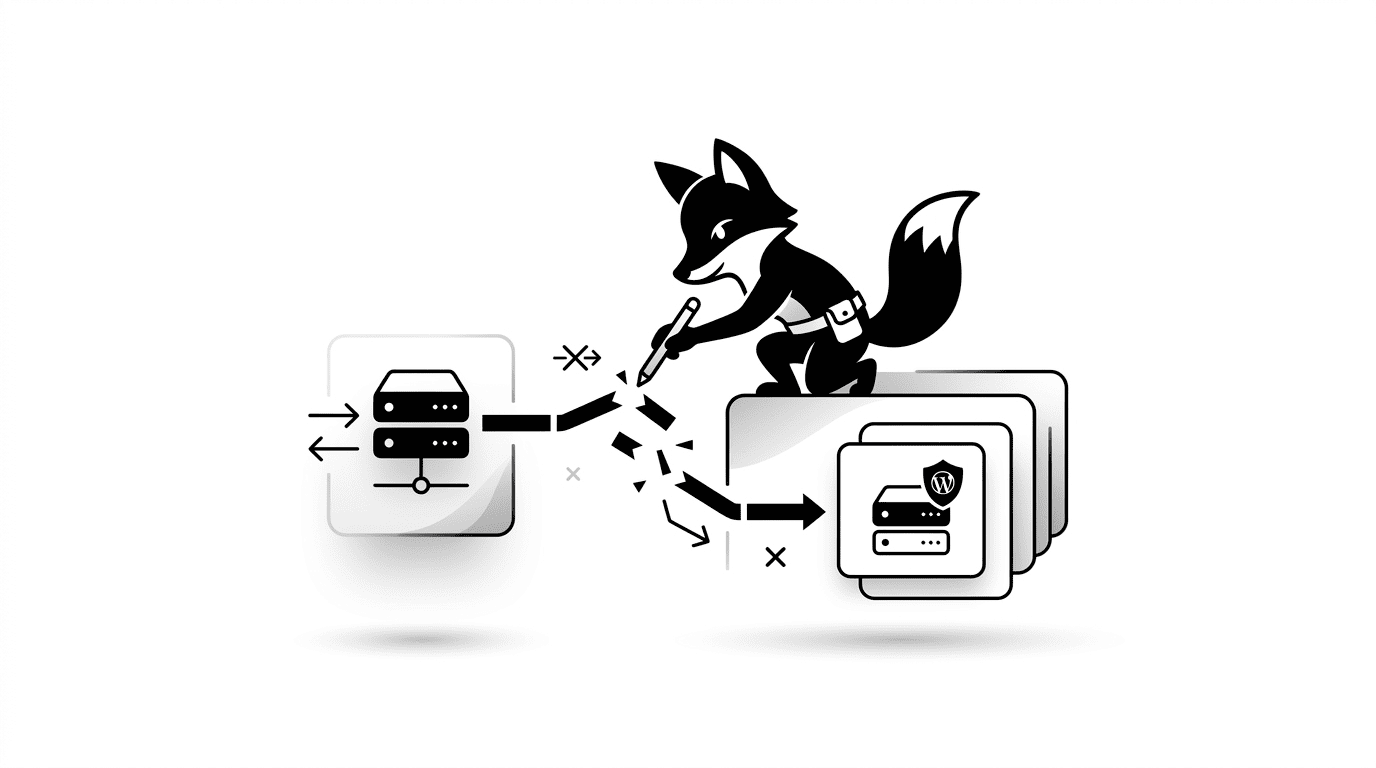
A 502 Bad Gateway error essentially means:
- Your Nginx server is working perfectly and accepting traffic
- But when it tries to pass that traffic to your WordPress backend container, it gets no response
In simple terms: Nginx is acting as a middleman, but the WordPress container is either asleep, crashed, or hiding behind the wrong network configuration.
The Main Causes of the 502 Error
- Your main WordPress container crashed and is no longer running
- You entered the wrong routing settings inside Nginx Proxy Manager
- Your containers are isolated on completely different Docker networks
- Your MySQL database stalled, causing the WordPress container to fail
- A fatal PHP error occurred inside the WordPress container
- You are trying to route traffic to the wrong hostname or internal port
STEP 1 — Check Your Running Docker Containers
First, we need to verify if the WordPress container is actually awake. Run this command in your terminal:
docker ps
If your WordPress container is missing from the list or says “Restarting”, you need to force it to wake up:
docker restart wpfox_app
STEP 2 — Test the WordPress Container Directly
We need to isolate the problem. Is WordPress broken, or is Nginx broken? Open this exact URL in your browser to bypass Nginx:
http://YOUR-SERVER-IP:8081
If your website loads perfectly → WordPress is fine, and your Nginx configuration is the problem.
If it does not load → Your WordPress container or port mappings are fundamentally broken.
STEP 3 — Fix Your Nginx Proxy Manager Settings
If Nginx is the culprit, log into your Nginx Proxy Manager dashboard. Go to your Proxy Host settings and verify you are using this exact structure:
Domain: wpfox.net
Forward Hostname / IP: wpfox_app
Forward Port: 80
Scheme: http
THE GOLDEN DOCKER RULE:
- Always use the exact container name (e.g., wpfox_app) as the Hostname
- DO NOT use 127.0.0.1 (That points to the inside of the Nginx container, not WordPress)
- DO NOT use your public VPS IP address
STEP 4 — Validate Your Docker Network
In Docker, containers cannot speak to each other unless they share the same virtual network. Inspect your network with this command:
docker network inspect wpfox_net
Check the output to guarantee that both your Nginx container and your WordPress container are listed inside this exact network.
Sometimes, the easiest way to fix a networking glitch is to tear the containers down and rebuild them cleanly:
docker compose down
docker compose up -d
Once they are running again, restart your proxy manager to refresh its routing tables:
docker restart proxy-app-1
STEP 6 — Clear Your Browser and Local Cache
Browsers are notorious for caching 502 error pages. Even if you fixed the server, you might still see the error.
- Open a fresh Incognito or Private browsing window
- Hard-refresh the page to bypass your local cache
- Test the URL on an entirely different device, like your smartphone
BONUS FIX — Inspect Your Raw Container Logs
If you have followed every step and are still staring at a 502 error, you need to look at the raw server data:
docker logs wpfox_app
Scan the output carefully. Look for:
- “Connection Refused” database errors
- Fatal PHP memory exhaustion warnings
- Evidence that the container is trapped in an endless restart loop
PRO TIP (The Agency Standard Setup)
If you want a secure, enterprise-grade Docker architecture, ensure you follow these rules:
- WordPress listens only on its internal port 80
- Nginx Proxy Manager is the only container handling public web traffic
- Your MySQL database is strictly isolated inside the Docker network
- Absolutely no database ports (like 3306) are exposed to the public internet
The Final Result
- Your domain successfully routes traffic through Nginx to WordPress
- The dreaded 502 Bad Gateway error is permanently resolved
- Your Docker architecture is properly networked and secured
Your Nginx proxy routing is now fully corrected, and your WordPress container is back online and accepting traffic.