One of the most common—and stressful—WordPress issues is a homepage that won’t load or displays the wrong content.
This typically happens after a fresh installation, a theme switch, or changes to your server configuration. If you are running on a VPS, Docker, or Nginx setup, routing issues are often the culprit. In this guide, we will walk through a logical, step-by-step process to identify the bottleneck and get your front page back online.
Root Causes of Homepage Failure
Before jumping into the fixes, it helps to understand why the “map” to your homepage might be broken. The most common technical reasons include:
- Misconfigured Reading Settings: WordPress isn’t told which page to prioritize.
- Permalink Desync: The internal URL rewrite rules are outdated.
- Theme Conflicts: A custom theme or template is overriding the core settings.
- Plugin Interference: A rogue plugin is hijacking the homepage request.
- Server Routing: Nginx or Docker configurations are failing to pass the request to index.php.
STEP 1 — Confirm Your Static Homepage Settings
This is the most common fix and usually the result of a simple configuration oversight.
Navigate to:
- WordPress Dashboard → Settings → Reading
Verify these settings:
- Your homepage displays: Select “A static page.”
- Homepage: Select your desired page from the dropdown menu.
Ensure you click Save Changes at the bottom of the page to apply the fix.
STEP 2 — Refresh Your Permalink Structure
Broken permalinks can cause “Page Not Found” errors on your homepage even if the content exists in the database.
- Go to Settings → Permalinks.
- Do not change any settings.
- Simply click “Save Changes.”
Why this works: This action triggers WordPress to “flush” its rewrite rules and regenerate the .htaccess (Apache) or internal routing map, which often resolves strange homepage behavior instantly.
STEP 3 — Repair Nginx and VPS Routing (For Docker Users)
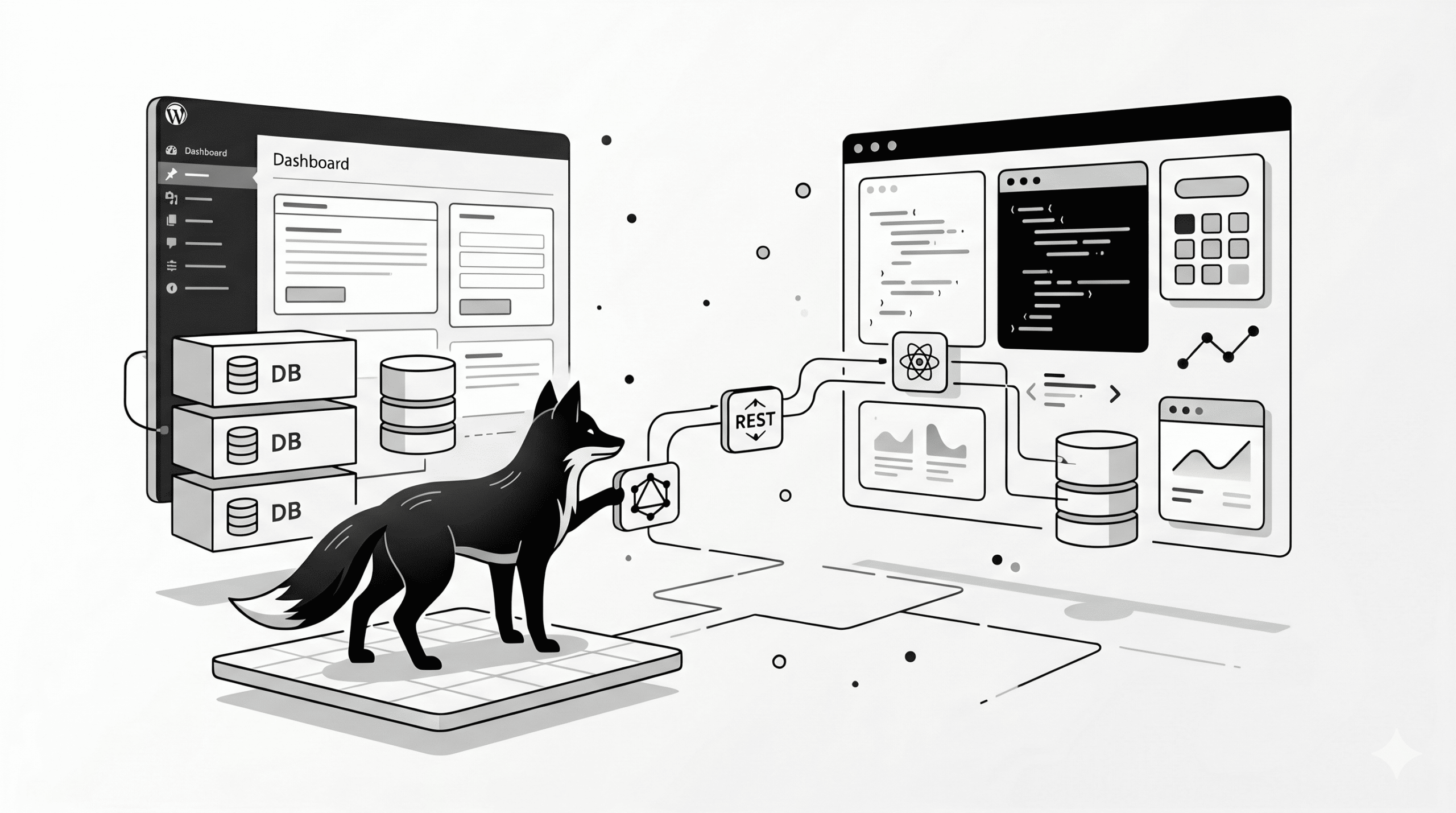
If you are managing your own VPS or using a Dockerized environment, the issue might be at the server level. Nginx must be told how to handle requests that don’t match a specific file.
Ensure your Nginx configuration block includes the following try_files directive:
location / {
try_files $uri $uri/ /index.php?$args;
}
After updating the config, restart your application container to apply the changes:
docker restart wpfox_app
Sometimes a theme includes custom code or templates that interfere with the default homepage rendering.
- Temporarily switch to a default theme (like Twenty Twenty-Four).
- Check your homepage.
If the homepage works with the default theme, the issue lies within your original theme’s front-page.php or home.php files.
STEP 5 — Isolate Plugin Interference
Caching, security, or redirect plugins can sometimes break your homepage routing. Use the surgical approach to find the culprit:
- Deactivate All Plugins: If the homepage returns to normal, a plugin is definitely responsible.
- The One-by-One Test: Reactivate your plugins one at a time, checking the homepage after each activation. The moment the site breaks, you’ve found the source.
STEP 6 — Clear the Invisible Cache Layers
If you’ve fixed the setting but still see the error, the “old” version of the site might be stuck in a cache.
- Local: Clear your browser cache or test in an Incognito/Private window.
- Server: Clear any caching plugins (WP Rocket, LiteSpeed, etc.).
- Proxy: If using Nginx Proxy Manager or Cloudflare, purge the cache or restart the proxy service.
STEP 7 — Verify Site and WordPress URLs
If your site is loading correctly but redirects to a different domain or a broken URL, check your core address settings under Settings → General:
- WordPress Address (URL): Where your core files live.
- Site Address (URL): The address people type to reach your site.
Ensure both are using the correct protocol (https://) and match your domain exactly.
Summary of Common Mistakes
- Forgetting to assign a specific page as the “Static Homepage.”
- Neglecting to flush permalinks after a migration or theme change.
- Missing the
try_files directive in Nginx configuration files.
- Incorrectly configured SSL protocols in the General Settings.
The Result: A Functional Front Page
- Perfect Routing: Your homepage loads reliably for every visitor.
- Proper Hierarchy: Your static content and blog posts are correctly separated.
- Technical Stability: Your VPS and Docker environment is optimized for WordPress requests.
Your WordPress homepage is now properly configured and fully operational. By following this systematic approach, you’ve ensured that your site’s “front door” is always open for business.