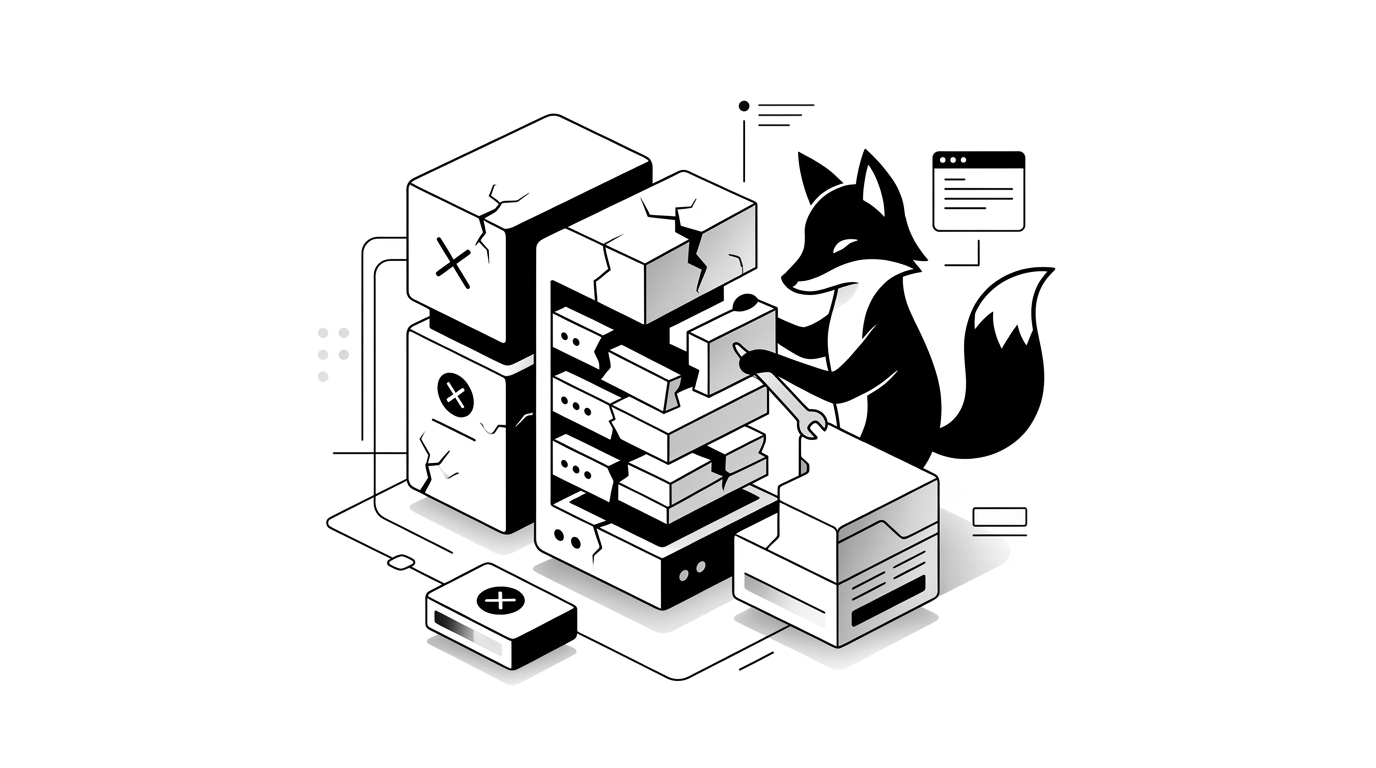
The 500 Internal Server Error is arguably the most infuriating message a WordPress owner can encounter.
Unlike other errors that give you a clue about what went wrong, the 500 error is completely vague. Your website simply stops working, locks you out of your dashboard, and offers zero explanation.
Don’t panic. In this guide, I will show you exactly how to diagnose and fix the WordPress 500 Internal Server Error step-by-step, getting your site back online fast.
What Exactly is a 500 Internal Server Error?
A 500 error essentially means that your web server encountered an unexpected condition and simply gave up on completing the request.
Because it is a generic “catch-all” error, it doesn’t tell you the root cause. It could be a rogue plugin, a broken theme, an exhausted server, or—most commonly—a corrupted configuration file.
STEP 1 — Rename Your .htaccess File (The Most Common Fix)
A corrupted `.htaccess` file is the culprit behind this error almost every single time. You need to force WordPress to create a fresh one.
Log into your site via FTP or your hosting file manager, locate the `.htaccess` file in your root folder, and rename it to:
.htaccess_old
Refresh your live website. If it loads perfectly, log into your WordPress dashboard, go to Settings → Permalinks, and simply click “Save Changes” to automatically generate a clean, new `.htaccess` file.
STEP 2 — Disable All Plugins via Your Server
If the `.htaccess` trick didn’t work, a severe plugin conflict is likely breaking your site.
Since you probably can’t access your WordPress admin panel, you must disable them directly on the server by renaming the plugins folder:
mv wp-content/plugins wp-content/plugins-disabled
Reload your website. If it comes back to life, rename the folder back to “plugins” and activate them one by one in your dashboard to isolate the broken one.
STEP 3 — Switch to a Default WordPress Theme
Sometimes a poorly coded theme update will trigger a fatal server error.
- Navigate to your wp-content/themes/ folder via FTP
- Rename your active theme’s folder (e.g., from ‘astra’ to ‘astra-disabled’)
This forces WordPress to fall back to a safe, default theme like Twenty Twenty-Four, which will instantly tell you if your original theme was the problem.
STEP 4 — Increase Your PHP Memory Limit
If your server runs out of memory while executing a heavy script, it will throw a 500 error.
Give your site more breathing room by adding this line to your wp-config.php file:
define(‘WP_MEMORY_LIMIT’, ‘256M’);
If this fixes it, your site is functioning again, but you still need to investigate *why* it was draining so much memory.
STEP 5 — Check Your Server Logs (The Ultimate Diagnostic)
If you are still flying blind, it is time to look at the raw data. Server logs act as an X-ray for your website and will pinpoint the exact line of code causing the crash.
- Check your Apache or Nginx error logs in your hosting panel
- If using Docker, check your container logs
You can pull Docker logs quickly with this command:
docker logs wpfox_app
STEP 6 — Restart Your Server Services (VPS & Docker)
If you manage your own VPS or run a Docker environment, the underlying server software might have simply frozen up.
Execute a clean reboot of your containers:
docker compose down
docker compose up -d
docker compose up -d
If you are running a reverse proxy, be sure to restart that service as well.
STEP 7 — Fix Your File Permissions
If your server permissions are set too strictly, the server won’t be allowed to read your website’s files, resulting in an instant 500 error.
- Set all Folders to: 755
- Set all Files to: 644
Common Causes Behind the Crash
- A corrupted `.htaccess` file (usually after migrating hosts or changing permalinks)
- A severe conflict between two newly updated plugins
- A fatal PHP error buried inside your active theme
- Exhausting your server’s allocated PHP memory limit
- Strict server misconfigurations or incorrect file permissions
The Final Result
- Your website is successfully restored and visible to the public
- The vague 500 error message is permanently removed
- Your server environment is stabilized
- You now know how to diagnose server logs for future troubleshooting
Keep Troubleshooting Like a Pro
- How to permanently fix the WordPress 502 Bad Gateway Error
- How to quickly solve the WordPress White Screen of Death
- What to do when your WordPress admin login completely stops working
- Proven strategies to drastically speed up your WordPress website
✔ The notoriously vague 500 Internal Server Error is now fully diagnosed, bypassed, and fixed, ensuring your site remains stable.
Share: