

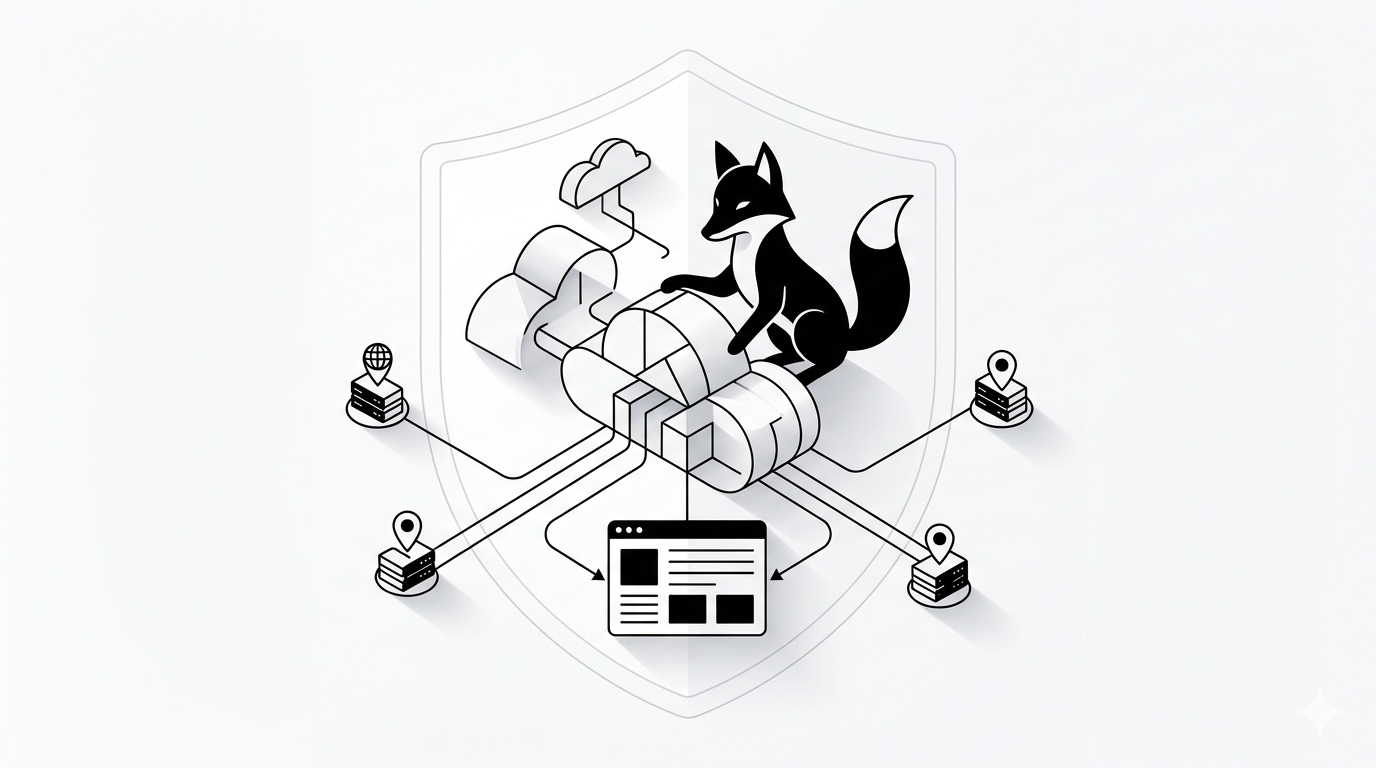
If your WordPress website feels sluggish, vulnerable to attacks, or is buckling under international traffic, adding Cloudflare is one of the most effective upgrades you can make.
In this guide, you will learn exactly how to configure Cloudflare step-by-step and optimize it for maximum speed and SEO performance.
What Exactly is Cloudflare?
Think of Cloudflare as both a strict security guard and a high-speed delivery service that sits directly between your web server and your visitors.
By routing your traffic through its global network, it helps:
- Dramatically speed up page load times around the world
- Block malicious traffic and automated bot attacks
- Reduce the strain and bandwidth usage on your hosting server
- Improve your core SEO metrics through better stability
STEP 1 — Create Your Free Cloudflare Account
Head over to the Cloudflare website and sign up for a free account to get started.
- Enter your primary website domain
- Allow Cloudflare a few seconds to automatically scan your existing DNS records
- Review the records and continue to the next step
STEP 2 — Change Your Domain Nameservers
To route your traffic through Cloudflare, they will provide you with two new nameservers. You need to log into your domain registrar to replace your old ones.
Common registrars include:
- Namecheap
- GoDaddy
- OVH
Do not skip this: Changing your nameservers is what officially activates Cloudflare on your domain.
STEP 3 — Turn On the Free Performance Features
Once your domain is active, navigate to the Speed/Optimization tab and enable these essential settings:
- Auto Minify (Check the boxes for CSS, JS, and HTML)
- Brotli compression
- HTTP/3 support
- Always Online
These toggles will instantly reduce the size of your files and improve your loading speed.
STEP 4 — Configure Your Caching Level
Next, navigate to your Caching configuration:
- Set your Caching Level to: Standard
- Set your Browser Cache TTL to: 4 hours (or more)
This tells visitors’ browsers to store static elements of your site locally, massively reducing the number of requests hitting your server.
STEP 5 — Enable Full SSL (Crucial Step)
If you don’t configure your SSL correctly, your site will break in a redirect loop. Go to the SSL/TLS settings tab:
- Select “Full (Strict)” mode
This guarantees an encrypted, secure connection between Cloudflare’s network and your origin server.
STEP 6 — Activate the Security Firewall
Cloudflare is famous for its enterprise-grade security. Make sure these are active to protect your site:
- DDoS protection
- Bot Fight Mode (to block malicious scrapers)
- Custom Firewall Rules (if you need to block specific countries or IP addresses)
STEP 7 — Advanced Speed Optimization (Pro Level)
If you want to push your site’s performance to the absolute limit:
- Enable “Rocket Loader” to defer JavaScript (Test this carefully, as it can occasionally conflict with page builders)
- Enable image optimization using the “Polish” feature (Available on paid plans)
- Create custom Page Rules to forcefully cache your static landing pages
How Cloudflare Directly Impacts Your SEO
Google’s algorithm heavily favors websites that are fast, stable, and secure.
Cloudflare actively boosts your SEO profile by:
- Slashing your Time to First Byte (TTFB) and overall page load times
- Helping you pass Google’s Core Web Vitals assessment
- Preventing server crashes and minimizing downtime
- Serving your content from data centers physically closest to your visitors
Avoid These Common Setup Mistakes
- Leaving SSL on “Flexible” instead of “Full (Strict)”
- Creating conflicting caching rules between Cloudflare and your WordPress caching plugin
- Turning on Rocket Loader and failing to test if your interactive elements still work
- Panicking if the site goes down immediately (DNS propagation can sometimes take a few hours)
The Pro Agency Tech Stack
If you want the exact setup used by high-end WordPress agencies, combine these tools:
- Cloudflare (for global delivery and security)
- A high-performance VPS host
- A LiteSpeed or Nginx web server
- A dedicated WordPress caching plugin (like LSCache or WP Rocket)
- Images served in next-gen formats like WebP
The Final Result
- Lightning-fast loading times for visitors anywhere in the world
- A noticeable bump in your technical SEO rankings
- Enterprise-level protection against hackers and bots
- Significantly lower server costs and bandwidth usage
Keep Upgrading Your Infrastructure
- Why your WordPress site is slow (even with caching plugins installed)
- The absolute best WordPress hosting providers for 2026
- How to easily troubleshoot the 500 Internal Server Error
- VPS vs. Shared Hosting: Which is actually right for your business?
Cloudflare is far more than just a simple plugin—it is a foundational performance and security layer that completely transforms how your website operates on the internet.
Share: