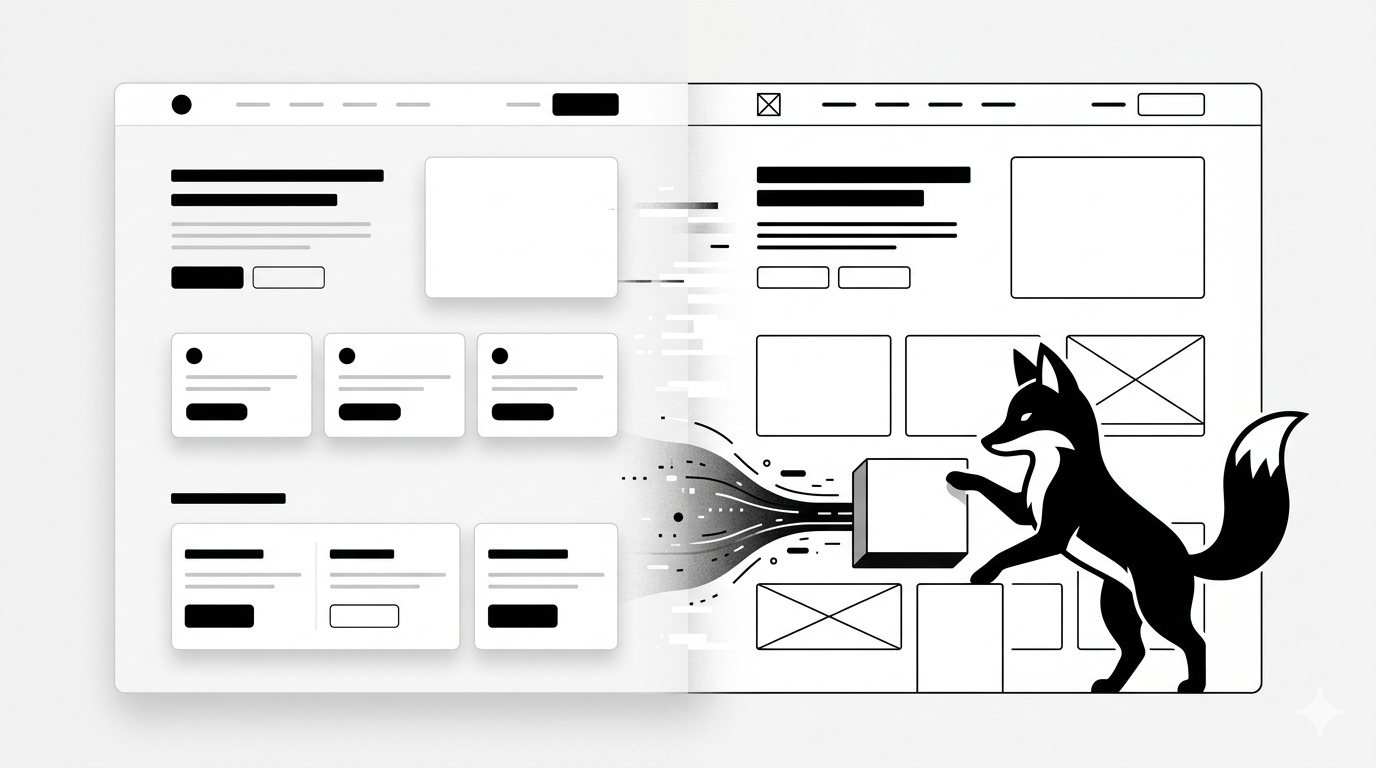
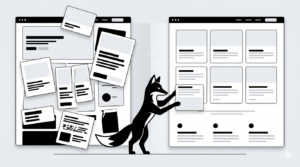
There is nothing more maddening than spending hours perfecting a WordPress design, only to view the live page and see a broken, unstyled mess.
If your fonts are suddenly wrong, buttons look weird, or Elementor changes simply refuse to show up, you are likely facing a CSS conflict.
This is one of the most frustrating hurdles for both beginners and seasoned developers. In this guide, I will show you exactly how to track down and fix CSS conflicts step-by-step.
What Exactly is a CSS Conflict in WordPress?
A CSS conflict occurs when two or more stylesheets are actively fighting for control over the exact same element on your page.
For example, this happens when:
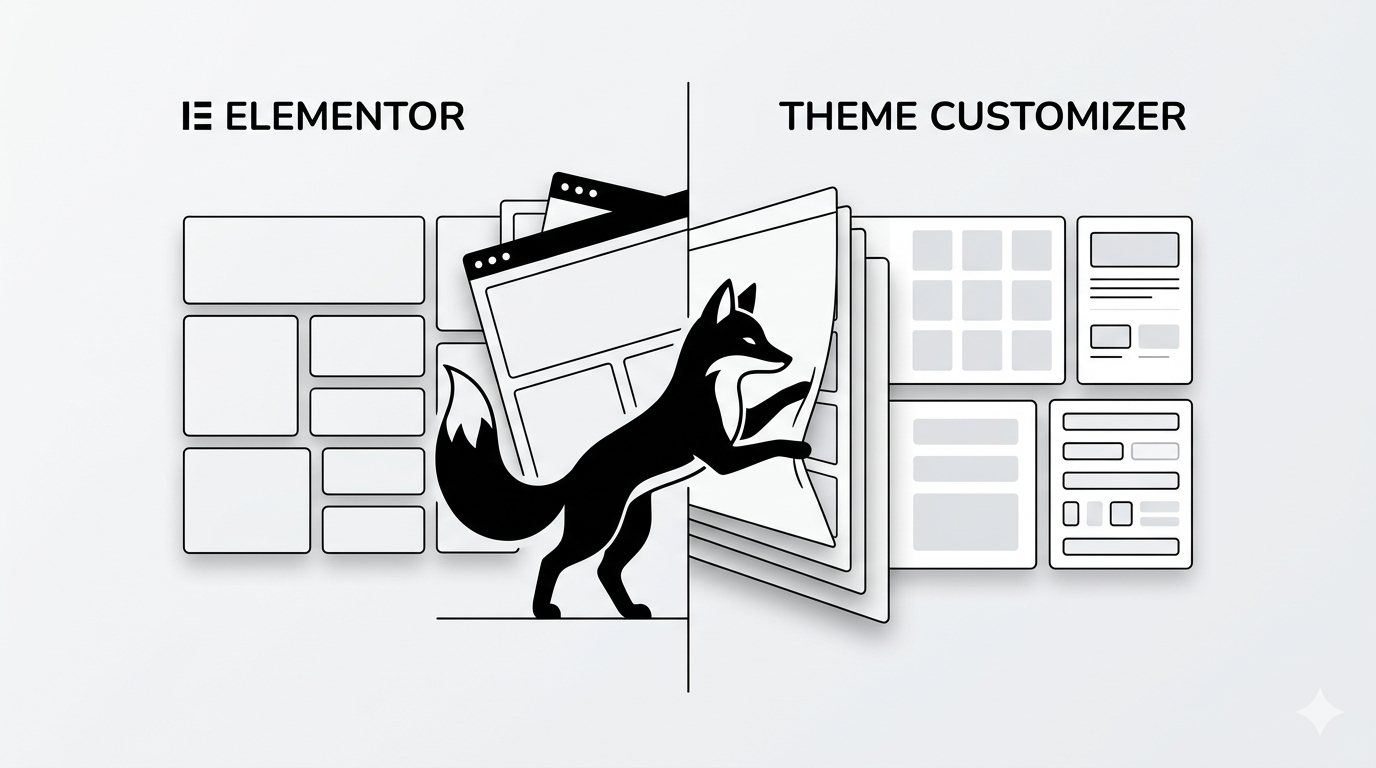
- Your theme’s default CSS tries to override your custom Elementor styles
- The WordPress Customizer settings clash with your theme’s baseline code
- A rogue plugin injects global styling that overrides everything else
The Result: Your browser gets confused, and your live design does not look at all like what you built in the editor.
Common Symptoms of a CSS Conflict
- Recent tweaks in Elementor are not updating on the front end
- Buttons, forms, or headers lose their custom styling
- Default system fonts appear instead of your chosen typography
- Section spacing, margins, and padding look completely broken
- Your custom CSS snippets are being entirely ignored
STEP 1 — Clear Every Layer of Cache (The Most Common Fix)
Before you dive into complex troubleshooting, clear your cache. CSS changes often fail to appear simply because your browser is holding onto an old file.
- Purge your WordPress caching plugin (WP Rocket, LiteSpeed, etc.)
- Clear your local browser history and cache
- Purge your Cloudflare or CDN cache completely
Refresh your page. If the styles return, your issue is solved.
STEP 2 — Regenerate Your Elementor CSS Files
Navigate to your WordPress dashboard:
- Go to Elementor → Tools
- Click the “Regenerate CSS & Data” button
This acts as a reset button, forcing Elementor to fetch and rebuild all of your recent styling changes.
STEP 3 — Understand CSS Specificity Issues
WordPress loads multiple CSS files in a specific sequence. CSS stands for “Cascading Style Sheets,” meaning the last rule loaded usually wins.
For example:
- If your Theme CSS loads after Elementor, the theme will override your page builder
- Inline custom CSS generally overrides both external theme and plugin files
The Solution: You either need to increase the specificity of your Elementor rules or carefully adjust your custom CSS.
STEP 4 — Disable Conflicting Plugins
Some plugins aggressively inject global CSS that tramples all over your site’s layout.
Test this by disabling your plugins. You can do this quickly via your server’s file manager or terminal:
mv wp-content/plugins wp-content/plugins-disabled
If your design goes back to normal, reactivate your plugins one by one until the layout breaks again to find the culprit.
STEP 5 — Check for Aggressive Theme Overrides
Bulky, poorly coded themes are notorious for forcing their own fonts and spacing rules over your Elementor designs.
Common theme conflicts include:
- Theme typography settings overriding your Elementor fonts
- Theme container padding overriding your Elementor sections
The Fix: Always use a lightweight, blank-canvas theme like Hello Elementor or Astra when building with a page builder.
You can see exactly which file is causing the conflict using Chrome DevTools (Press F12 or Right-Click → Inspect):
- Click on the broken element on your page
- Look at the Styles panel to see which CSS rule is currently active
- Look for “line-through” text—these are the styles being successfully overridden
This is exactly how professional developers debug CSS issues in real-time.
STEP 7 — Force Load the Correct Styles (Advanced)
If you absolutely cannot find the source of the conflict, you can force your preferred style to win by using the `!important` tag in your Custom CSS:
selector {
color: red !important;
}
Warning: Treat !important as a nuclear option. Overusing it makes your website incredibly difficult to maintain and update in the future.
Avoid These Common Styling Mistakes
- Applying styles in too many different places (Theme Customizer + Elementor + Plugin Settings)
- Trying to debug code without clearing the server and browser cache first
- Not understanding basic CSS specificity and loading orders
- Using the !important tag as a lazy fix for every minor layout issue
The Final Result
- Your design system remains clean and consistent
- Elementor styles apply instantly and correctly
- Your theme acts as a foundation, not a roadblock
- Your layout remains stable across all devices and pages
Keep Optimizing Your WordPress Site
CSS conflicts are rarely true bugs—they are simply priority disputes between stylesheets. Once you understand the loading order, you have complete control over your design system.