

Encountering the “Error Establishing a Database Connection” message is a worst-case scenario for any WordPress site owner.
Unlike a minor layout glitch, this critical error means your website is completely offline. No content will load, visitors will bounce, and you are entirely locked out of your admin dashboard.
In this guide, I will walk you through the exact troubleshooting steps to restore your connection and get your site back online immediately.
What This Error Actually Means
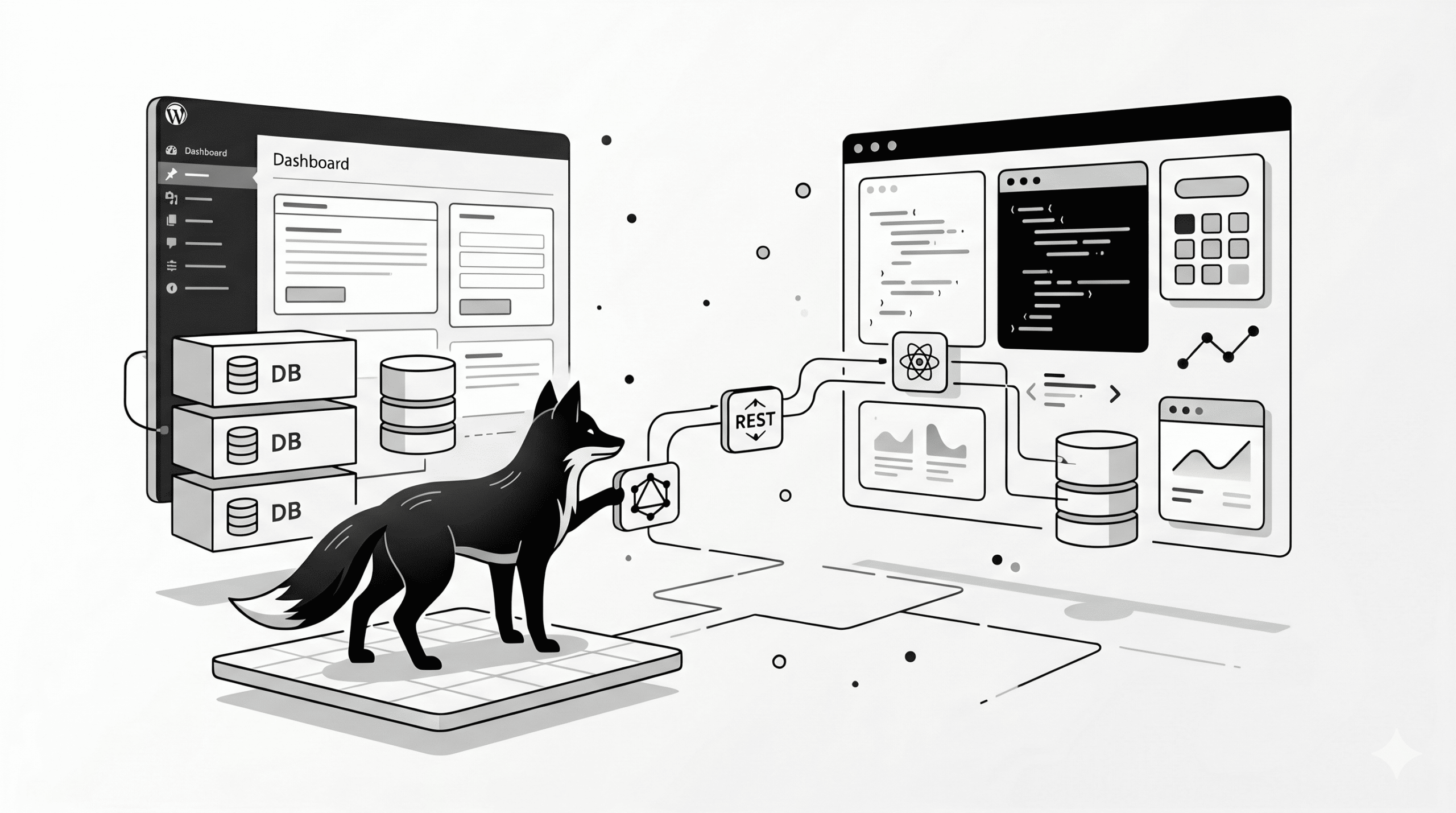
WordPress relies on a database to store absolutely everything—your blog posts, user accounts, plugin settings, and theme configurations.
If your server severs that connection, WordPress has no data to pull from, resulting in a total website blackout.
STEP 1 — Verify Your Database Credentials (The Most Common Culprit)
Open your site’s root folder, locate your wp-config.php file, and carefully double-check these four core definitions:
DB_NAME
DB_USER
DB_PASSWORD
DB_HOST
DB_USER
DB_PASSWORD
DB_HOST
Even a single missing quotation mark, an extra space, or a slightly mistyped password will instantly kill the connection.
STEP 2 — Force a Database Restart (For Docker & VPS Users)
If you are managing your own server or using Docker containers, the MySQL service might have simply frozen or stalled under load.
First, restart your MySQL container:
docker restart wpfox_db
Immediately follow that by restarting your main WordPress container to refresh the connection request:
docker restart wpfox_app
STEP 3 — Confirm Your Database Hostname
In many modern VPS or containerized setups, your database host should NOT be set to the default “localhost”.
Instead, try routing it using:
- Your dedicated MySQL container name (e.g., wpfox_db)
- Or your internal Docker network IP address
A misrouted database host guarantees a complete connection failure.
STEP 4 — Verify MySQL is Actually Running
Run a quick health check on your containers using this command in your terminal:
docker ps
Scan the output to ensure your MySQL container is marked as “Up” and healthy. If it is missing or trapped in a restart loop, your database has crashed.
STEP 5 — Trigger the WordPress Database Repair Tool
WordPress features a hidden repair tool for corrupted databases. Activate it by adding this single line to your wp-config.php file:
define(‘WP_ALLOW_REPAIR’, true);
Once saved, navigate to this exact URL in your browser:
https://yourdomain.com/wp-admin/maint/repair.php
Click the button to run a full repair and optimization sweep of your tables.
STEP 6 — Investigate Server Overload
If your VPS runs out of RAM during a massive traffic spike, the server will actively kill the MySQL process to save itself from crashing entirely.
- Check your live CPU consumption via your hosting panel
- Monitor your available server RAM
- Reboot your VPS or upgrade your server resources if you are consistently maxed out
STEP 7 — Validate Your Docker Network Routing
If you are using Docker, your WordPress and MySQL containers must exist on the exact same internal network to communicate.
docker network inspect wpfox_net
If they are isolated on entirely different networks, WordPress will never be able to reach your database.
Avoid These Critical Troubleshooting Mistakes
- Entering the wrong database password after migrating to a new host
- Failing to notice that the MySQL container has completely stopped running
- Leaving “localhost” as the DB_HOST in a complex, containerized Docker environment
- Ignoring strict server resource limits that cause the database to crash under pressure
The Final Result
- WordPress successfully re-establishes a secure connection to your database
- Your website loads normally for both visitors and search engines
- The terrifying downtime error is completely resolved
- Your VPS and Docker architecture is stabilized for future traffic spikes
Keep Optimizing Your Infrastructure
- How to permanently fix the 502 Bad Gateway error in WordPress
- How to quickly track down and resolve a WordPress 404 error
- Proven strategies to drastically speed up your WordPress website
- The ultimate guide to securing your WordPress site from hackers
✔ Your WordPress database connection error is now fully diagnosed, bypassed, and permanently fixed.
Share: