
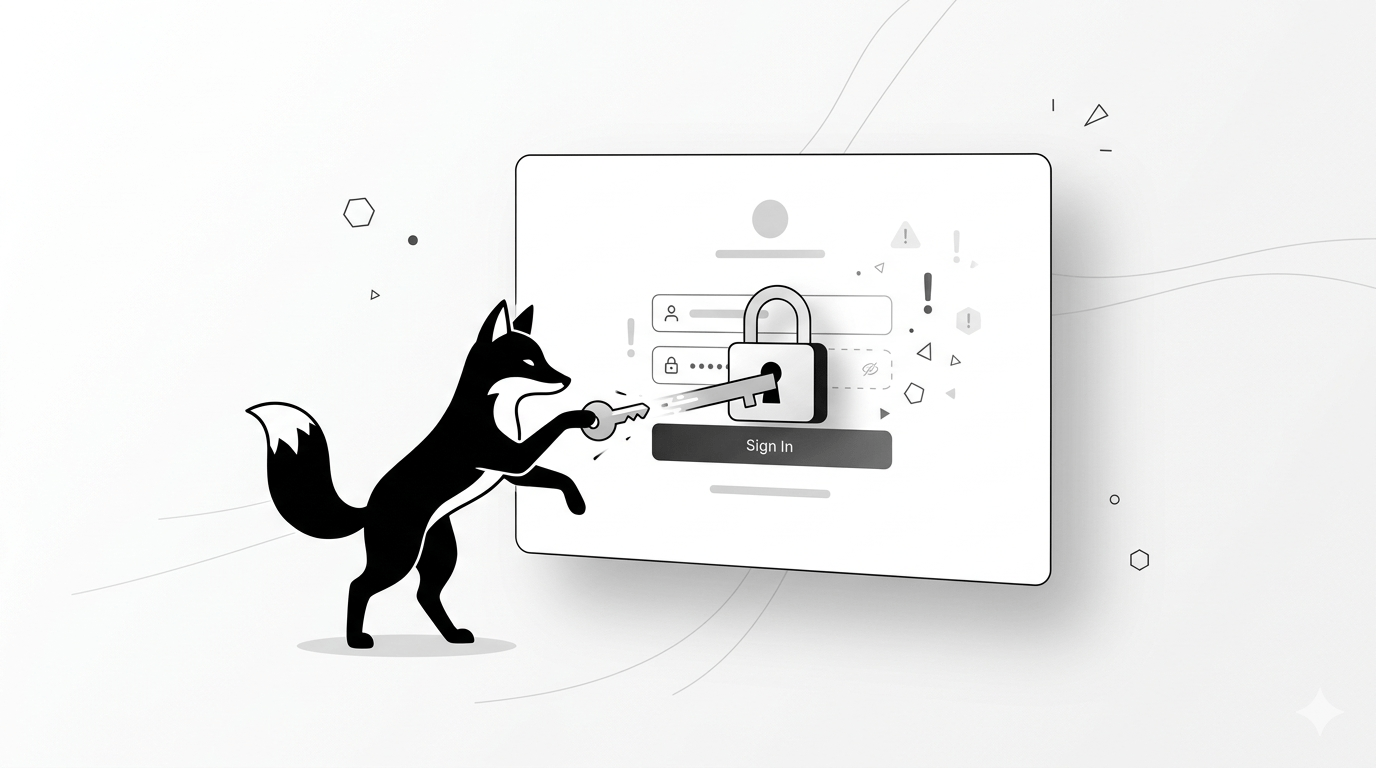
Being locked out of your own website is incredibly stressful. You go to log in, and suddenly your WordPress dashboard (wp-admin) simply refuses to let you in.
Whether the page is endlessly refreshing, showing a blank screen, or rejecting your correct password, don’t panic. This is a notorious but easily solvable WordPress glitch usually triggered by a stale cache, a rogue plugin, or a database timeout.
In this guide, I will show you exactly how to bypass the errors and force your way back into your WordPress dashboard, step-by-step.
Why Your WordPress Login Suddenly Breaks
- A silent plugin conflict is blocking the authentication script
- Your core routing file (.htaccess) has become corrupted
- A recent site migration mismatched your database URLs
- Stale browser cookies are creating an endless “login loop”
- Your database service crashed, meaning WordPress cannot verify your password
STEP 1 — Perform a Hard Password Reset (The Fastest Fix)
Before diving into server commands, rule out the simplest explanation. Sometimes, a database glitch just scrambles your active session.
- Click the “Lost your password?” link at the bottom of the wp-login page
- Enter your administrator email address to force a reset
- Check your inbox (and your spam folder) for the recovery link
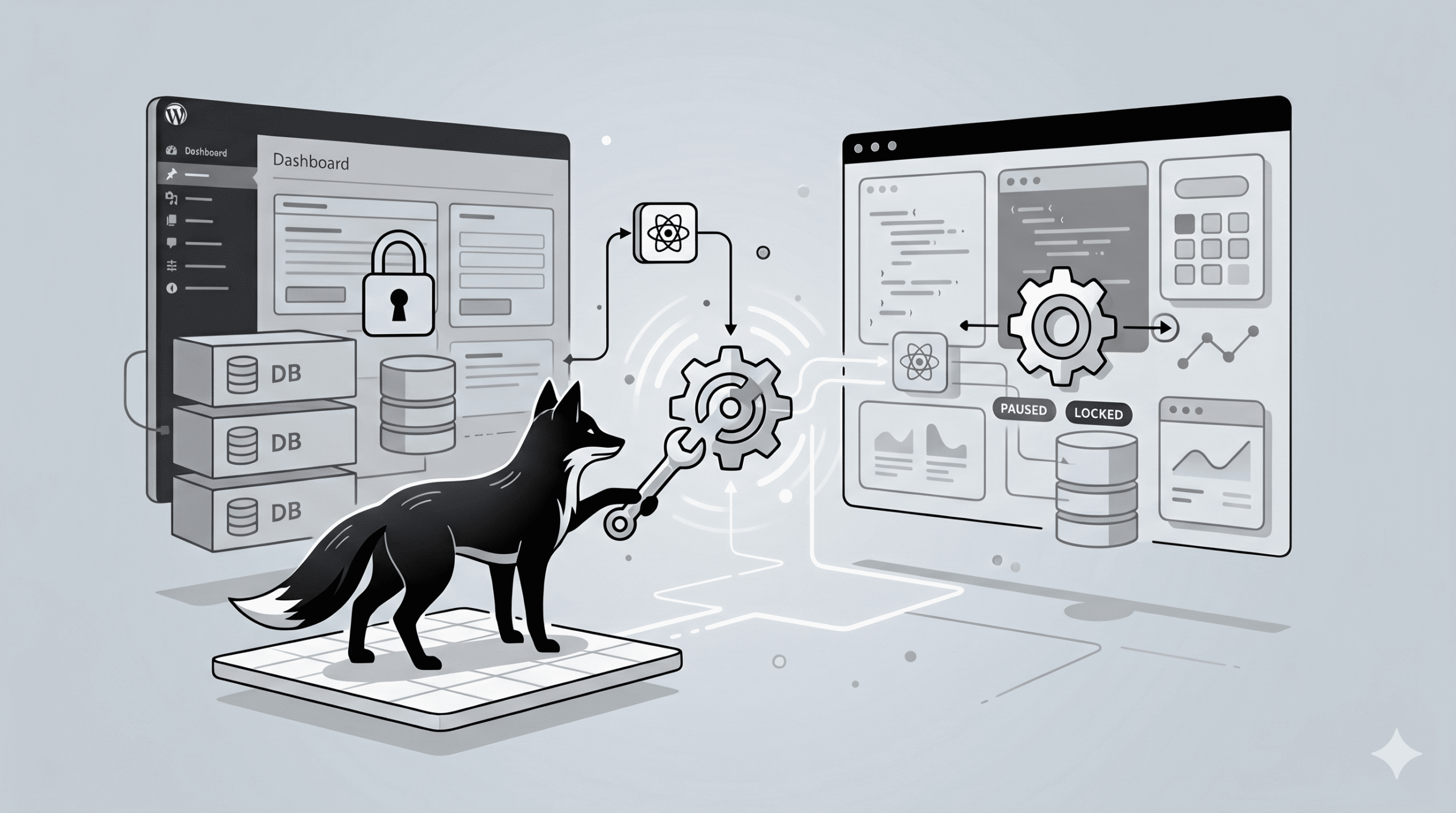
STEP 2 — Disable Plugins via Your Server (For VPS / Docker)
If a rogue security or caching plugin is actively blocking your login page, you must bypass the dashboard and disable them directly from your server.
If you are running a Docker environment, access your container’s bash terminal:
docker exec -it wpfox_app bash
Then, rename the plugins folder to instantly deactivate all of them at once:
mv wp-content/plugins wp-content/plugins-disabled
Refresh your login page. If it works, a plugin was the culprit.
STEP 3 — Regenerate a Corrupted .htaccess File
The .htaccess file controls how your server routes traffic. If a recent update corrupted it, your login page won’t know where to send you after you hit enter.
Access your site’s root folder via FTP or your terminal, and replace the contents of your .htaccess file with these default, safe WordPress rules:
# BEGIN WordPress
RewriteEngine On
RewriteBase /
RewriteRule ^index\.php$ – [L]
RewriteCond %{REQUEST_FILENAME} !-f
RewriteCond %{REQUEST_FILENAME} !-d
RewriteRule . /index.php [L]
# END WordPress
RewriteEngine On
RewriteBase /
RewriteRule ^index\.php$ – [L]
RewriteCond %{REQUEST_FILENAME} !-f
RewriteCond %{REQUEST_FILENAME} !-d
RewriteRule . /index.php [L]
# END WordPress
STEP 4 — Clear Browser Cookies and Cache
The infamous “login loop of death” (where the page just refreshes and clears your password) is almost always caused by stale session cookies.
- Completely clear your browser’s cookies and site data
- Attempt to log in using a private or Incognito window
- Test the login page on an entirely different browser (like Firefox or Edge)
STEP 5 — Hardcode Your WordPress URL Settings
If you recently changed your domain or moved from HTTP to HTTPS, a URL mismatch will permanently lock you out.
You can force the correct URLs by adding these two lines directly into your wp-config.php file:
define(‘WP_HOME’,’https://yourdomain.com’);
define(‘WP_SITEURL’,’https://yourdomain.com’);
define(‘WP_SITEURL’,’https://yourdomain.com’);
STEP 6 — Resolve Database Connection Drops
If WordPress cannot connect to the database, it cannot retrieve your username or verify your password.
If you are managing a Dockerized environment, execute a clean restart of your database container:
docker restart wpfox_db
Followed immediately by a restart of your main WordPress application container:
docker restart wpfox_app
STEP 7 — Break the Cloudflare Login Loop
If you are still getting redirected in an endless loop, your CDN or caching layer is likely serving a cached “logged out” version of the page.
- Temporarily disable any server-side caching plugins via FTP
- Purge your entire Cloudflare cache and turn on “Development Mode”
- Ensure your Cloudflare SSL/TLS setting is set to “Full (Strict)”, not “Flexible”
Avoid These Common Troubleshooting Mistakes
- Typing the wrong HTTP/HTTPS protocol in the wp-config.php file
- Ignoring a plugin conflict just because you didn’t manually update anything today
- Trying to edit the .htaccess file without keeping a backup of the original
- Assuming your site is hacked when it is just a simple database timeout
The Final Result
- Your administrative access is completely restored
- The frustrating redirect loops are eliminated
- Your WordPress backend is stable and secure
- You know exactly how to bypass the dashboard to fix future errors
Keep Optimizing Your Infrastructure
- How to quickly solve the WordPress White Screen of Death
- How to permanently fix the WordPress 502 Bad Gateway error
- What to do when your site shows an “Error Establishing a Database Connection”
- Proven strategies to drastically speed up your WordPress website
✔ Your WordPress login issue is now fully diagnosed and resolved, giving you back total control of your website.
Share: