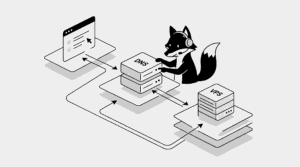




Beneath the static of modern life, the wild hums softly — patient, unbroken. The ground remembers what we’ve forgotten. In their silence, stones carry the oldest truths.
***
A slow WordPress site isn’t just an annoyance—it’s a silent killer for your traffic, SEO rankings, and conversion rates.
When you’re running on a VPS using Docker and Nginx Proxy Manager, you have the power to optimize every layer of your stack. In this guide, we’ll move beyond basic fixes and show you how to turn your server into a high-performance machine.
The Culprits: Why Your VPS Setup Might Be Lagging
- Unconstrained Containers: Docker containers fighting over server resources.
- The “Cold Start” Problem: No caching system to handle repetitive requests.
- Database Bottlenecks: MySQL struggling to process complex queries.
- Unoptimized Traffic: Nginx serving files without compression or headers.
STEP 1 — Audit Your Server Resources
Before fixing anything, we need to see what’s actually happening under the hood. Use this command to see your global VPS load:
top
If your CPU usage is consistently spiking, your containers are working too hard to process simple requests.
STEP 2 — Monitor Your Docker Health
Docker provides a real-time stream of exactly how much RAM and CPU each container is hogging:
docker stats
If your wpfox_app is eating all your RAM, it’s a sign that your PHP settings or theme need help.
STEP 3 — Deploy a Caching Strategy (The Game Changer)
Every time someone visits your site, WordPress has to “build” the page from the database. Caching stops this. It stores a static version and serves it instantly.
- LiteSpeed Cache: The gold standard if your Docker image supports it.
- WP Super Cache: Reliable, lightweight, and incredibly effective.
STEP 4 — Supercharge Nginx with Gzip Compression
Nginx can “shrink” your website files before sending them to the user. In **Nginx Proxy Manager → Proxy Host → Advanced**, add this block:
gzip on;
gzip_types text/plain text/css application/json application/javascript text/xml application/xml;
gzip_types text/plain text/css application/json application/javascript text/xml application/xml;
STEP 5 — Fine-Tune Your Database (MySQL)
Your database is the heart of WordPress. If it’s slow, everything is slow. Access your DB container:
docker exec -it wpfox_db bash
Increasing the innodb_buffer_pool_size allows MySQL to keep more data in RAM rather than reading from the slow disk. This is the #1 performance tweak for databases.
STEP 6 — Leverage Browser Caching
Don’t make users download your logo and CSS every time they click a link. Tell their browser to keep those files for 30 days:
location ~* \.(jpg|jpeg|png|gif|css|js|ico|woff2)$ {
expires 30d;
add_header Cache-Control “public, no-transform”;
}
expires 30d;
add_header Cache-Control “public, no-transform”;
}
The Final Result
- Instantaneous page transitions for your users
- Lower server overhead (letting you run more on the same VPS)
- A massive green checkmark on Google PageSpeed Insights
- A professional-grade hosting infrastructure
Deepen Your Knowledge
- The Blueprint: Installing WordPress on VPS with Docker
- Troubleshooting the 502 Bad Gateway in Docker
- Securing Your VPS: SSL Setup with Let’s Encrypt
✔ Your WordPress site is now tuned for maximum speed and SEO dominance.
Share: