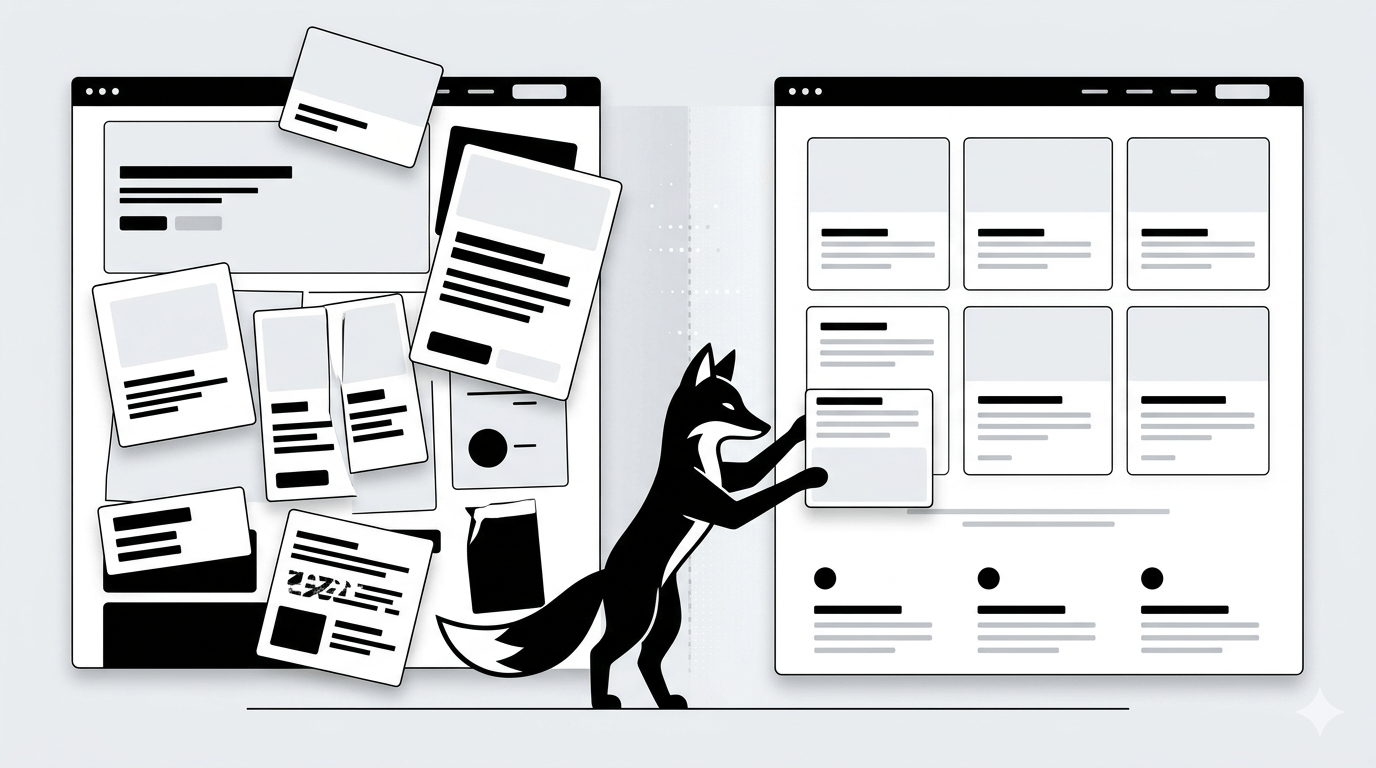
You just spent hours meticulously designing a page, but when you hit publish, the layout is completely shattered or Elementor simply refuses to load.
Before you panic and think your design is gone forever, take a deep breath. This is one of the most common hiccups in WordPress, usually caused by a temporary caching glitch, a rogue plugin, or strict server limits.
In this guide, I will walk you through exactly how to unfreeze Elementor and restore your broken layout step-by-step.
Why Elementor Suddenly Stops Working
- A recently updated plugin is actively clashing with Elementor’s code
- You are running an outdated version of Elementor Free or Pro
- Your server’s PHP memory limit is too low to support a visual builder
- Your caching plugin or CDN is serving an old, broken version of the page
- Your current theme has compatibility issues with the latest Elementor update
- Hidden JavaScript errors are blocking the builder from loading
STEP 1 — Clear Every Layer of Cache (The Fastest Fix)
Nine times out of ten, Elementor is working fine, but your browser is stuck looking at an old snapshot of your site.
- Purge your WordPress caching plugin (WP Rocket, LiteSpeed, etc.)
- Clear your local browser cache and history
- Purge your CDN cache (like Cloudflare, if you use it)
Refresh your page. If the layout snaps back into place, you are good to go.
STEP 2 — Regenerate Elementor’s CSS Files
Sometimes, Elementor simply loses the map to its own design files. You can force it to rebuild them:
- Navigate to WordPress Dashboard → Elementor → Tools
- Click the “Regenerate CSS & Data” button
This acts as a hard reset for your styles and instantly fixes broken layouts in the majority of cases.
STEP 3 — Disable Conflicting Plugins
Other plugins can inject scripts that accidentally break Elementor’s drag-and-drop interface.
To test this, disable all plugins except Elementor and Elementor Pro. You can do this via your server terminal with this command:
mv wp-content/plugins wp-content/plugins-disabled
If Elementor works again, reactivate your plugins one by one until the builder breaks. The last one you activated is the conflict.
STEP 4 — Increase Your PHP Memory Limit
Visual page builders are heavy applications. If your server doesn’t give Elementor enough “breathing room,” it will freeze.
Add this line of code to your wp-config.php file to increase its memory allowance:
define(‘WP_MEMORY_LIMIT’, ‘256M’);
STEP 5 — Check for Hidden JavaScript Errors
If the Elementor loading screen spins forever, a JavaScript error is likely blocking it.
- Open your live page and access your browser’s Developer Tools (Press F12)
- Click on the “Console” tab and look for text written in red
- These red errors often name the exact script or plugin causing the blockage
STEP 6 — Update Elementor and WordPress Core
Running an old version of Elementor alongside a new version of WordPress (or vice versa) is a guaranteed way to break your layout.
- Update the core Elementor plugin
- Update Elementor Pro (ensure your license is active)
- Update your WordPress core to the latest stable release
STEP 7 — Switch to a Safe Default Theme
If all else fails, your theme might be actively restricting Elementor’s code.
- Switch your active theme to Hello Elementor (their official, lightweight theme)
- Alternatively, test with a default WordPress theme like Twenty Twenty-Four
Avoid These Common Maintenance Mistakes
- Installing too many heavy, unnecessary plugins that drain server resources
- Forgetting to clear your server and browser cache after making major design changes
- Letting your Elementor Pro license expire, leaving you stuck on an outdated version
- Trying to run a heavy page builder on an incredibly cheap, low-performance hosting plan
The Final Result
- The Elementor editor loads quickly and smoothly
- Your front-end layout is fully restored and looks exactly as you designed it
- You have eliminated any hidden code conflicts
- Your page builder’s performance is stabilized for future editing
Keep Optimizing Your Infrastructure
- How to fix the WordPress 502 Bad Gateway Error
- How to permanently fix the WordPress 500 Internal Server Error
- Proven strategies to drastically speed up your WordPress website
- The absolute best AI tools to integrate into your WordPress workflow
✔ Your Elementor issues are now fully diagnosed and fixed, giving you a stable environment to get back to designing.
Share: