Let’s be honest: running WordPress on a VPS is powerful, but it’s a tightrope walk without a net if you don’t have backups.
Whether it’s a botched plugin update, a sudden server crash, or a malicious hacking attempt, things go wrong. When they do, a solid backup is the only thing standing between a quick fix and losing months of hard work.
In this guide, we’ll walk through exactly how to back up your WordPress site step-by-step using Docker and manual methods so you can sleep better at night.
Why WordPress Backups Are Non-Negotiable
If you’re managing your own VPS, you are the sysadmin. There’s no “support ticket” to undo a deleted database. Regular backups allow you to:
- Instant Recovery: Get back online in minutes after a server crash.
- Security Shield: Roll back to a clean version if you’re hit by malware.
- Fearless Updates: Test new PHP versions or plugins without the “white screen of death” anxiety.
- Migration Ease: Move your site to a new VPS whenever you want.
METHOD 1 — The Precision Manual Backup (Files + DB)
This method is perfect when you want to grab a quick snapshot of your site without stopping your services.
📁 Step 1: Backing Up WordPress Files
First, access your running application container:
docker exec -it wpfox_app bash
Once inside, compress your entire web directory into a single, portable archive:
tar -czvf wpfox_files_backup.tar.gz /var/www/html
Step 2: Exporting Your MySQL Database
The files are just half the story; your content lives in the database. Run this command from your host terminal to export your SQL data:
docker exec wpfox_db mysqldump -u root -p wpfox > wpfox_db_backup.sql
Pro tip: Ensure you replace “wpfox” with your actual database name and “wpfox_db” with your container name.
METHOD 2 — The Full Docker Snapshot (Recommended)
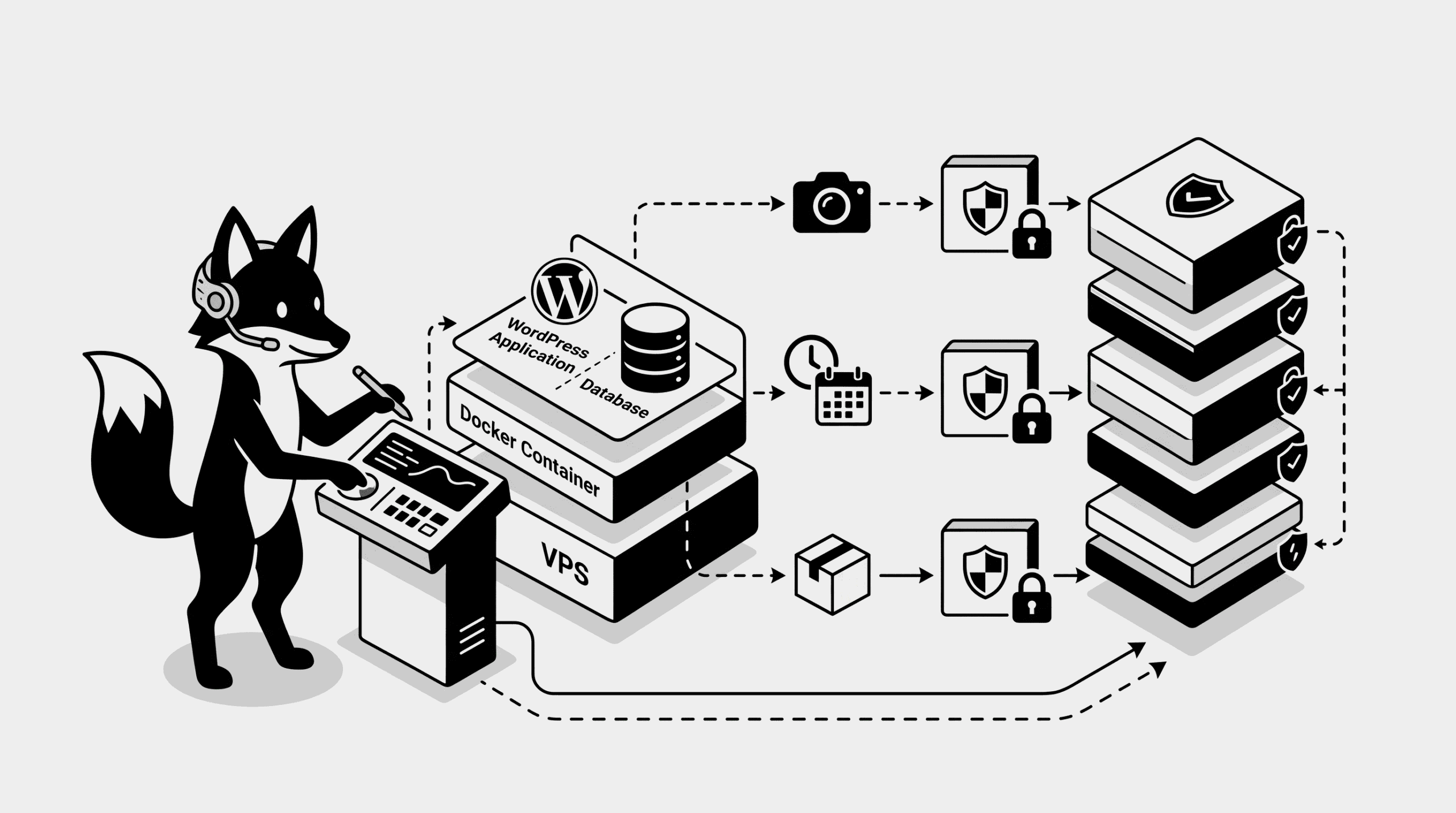
If you want a 100% consistent backup of the entire environment, this is the way to go. It involves briefly stopping the containers to ensure no data is being written during the backup.
Step 1 — Stop the Containers
docker compose down
Step 2 — Locate and Backup Volumes
Find where Docker is storing your persistent data:
docker volume ls
Now, simply copy the volume data to your secure backup location or a remote cloud drive.
METHOD 3 — Using an Automatic Backup Plugin
Don’t want to touch the command line every day? You can still use plugins even within a Docker environment.
- UpdraftPlus: The gold standard. It’s reliable and handles remote storage beautifully.
- BackWPup: Great for creating specific zip archives of your installation.
Why use a plugin?
- Set it and forget it with scheduled backups.
- Automatically push files to Google Drive, Dropbox, or S3.
- Perform a one-click restore directly from the WordPress dashboard.
EMERGENCY ROOM: How to Restore Your Backup
A backup is useless if you don’t know how to use it. Here is your “Break Glass in Case of Emergency” plan.
Restoring Files
To extract your files back into the WordPress directory:
tar -xzvf wpfox_files_backup.tar.gz
Restoring the Database
Push your SQL backup back into the MySQL container:
docker exec -i wpfox_db mysql -u root -p wpfox < wpfox_db_backup.sql
The “Pro-Level” Backup Strategy
Don’t just back up—back up smart. Follow the 3-2-1 rule:
- Frequency: Daily backups are the minimum for active sites.
- Redundancy: Keep at least 3 historical versions (don’t overwrite your only backup!).
- Off-site Storage: Never keep your backups solely on the same VPS. If the server dies, the backup dies with it. Move them to the cloud.
- The Fire Drill: Test your restore process at least once every few months.
Avoid These Common Mistakes
- The “Same Basket” Error: Keeping backups on the same disk partition as your site.
- The “Blind Faith” Error: Assuming the backup worked without checking the file size or contents.
- The “Database Forgetfulness”: Backing up files but forgetting the .sql file where your posts and settings actually live.
Final Result
- Peace of Mind: Your hard work is protected against the unexpected.
- Resilience: You can migrate or recover your site in under 10 minutes.
- Professional Setup: You’re running your VPS like a seasoned pro.
Essential Reading for VPS Owners
You’re all set! You now have a battle-tested WordPress backup system for your Docker-based VPS.