Hitting the “Update” button on a plugin only to watch your entire WordPress website instantly crash is a terrifying experience.
Whether you are staring at a blank White Screen of Death, a string of fatal PHP errors, or a completely broken layout, do not panic. This is an incredibly common issue.
In this guide, I will show you exactly how to bypass the errors, find the culprit, and safely restore your website step-by-step.
Why WordPress Breaks After a Plugin Update
- The newly updated plugin code is actively clashing with your theme
- The new version is fundamentally incompatible with your other plugins
- Your server is running an outdated PHP version that cannot read the new code
- The update process stalled, leaving you with a corrupted plugin file
- The heavy update process exhausted your server’s PHP memory limit
STEP 1 — Disable All Plugins (The Fastest Fix)
If you still have access to your WordPress dashboard:
- Navigate to Plugins → Installed Plugins
- Select all, choose “Deactivate” from the bulk actions, and click Apply
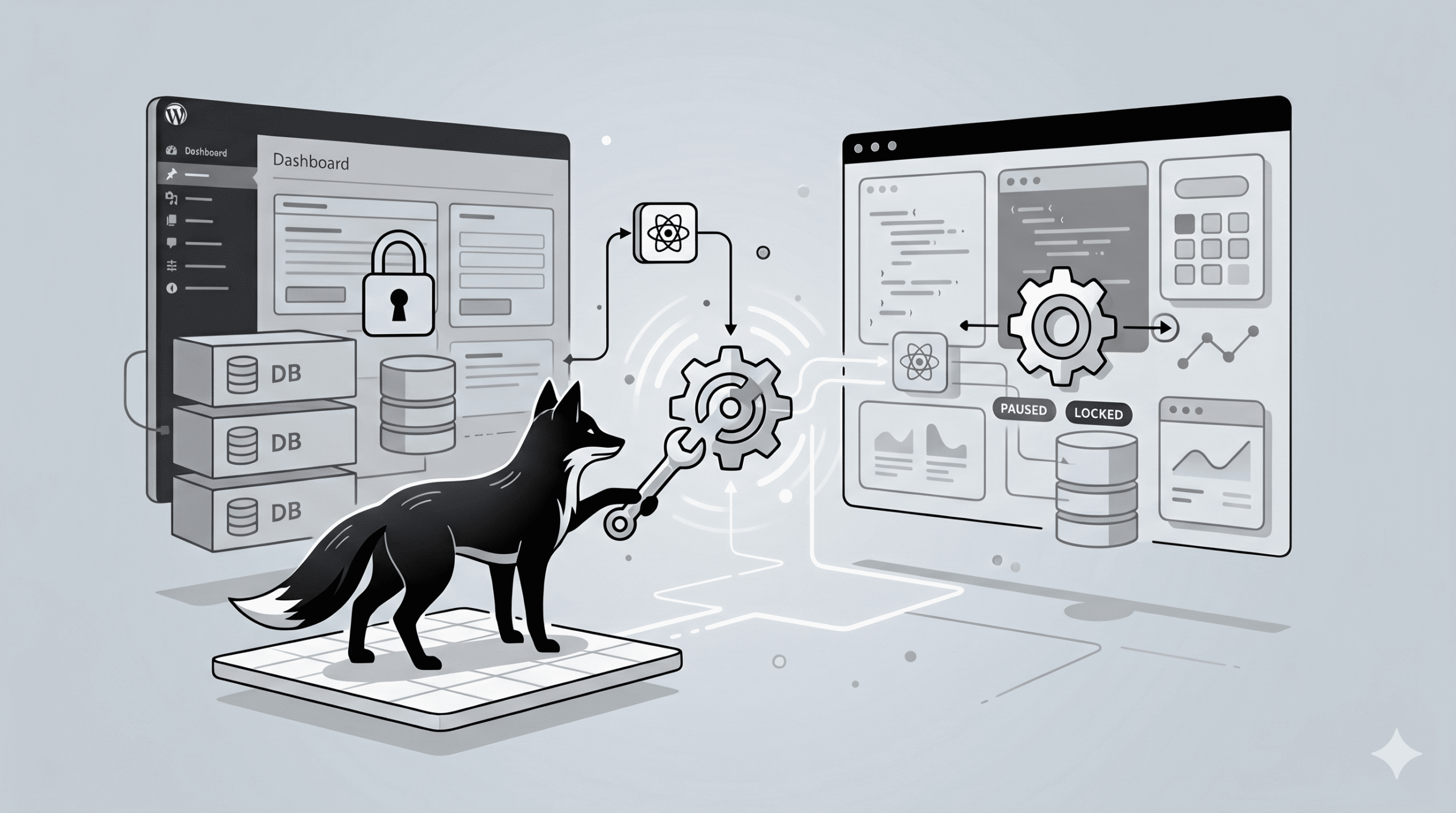
If you are completely locked out of your dashboard, you must disable them via your server. For VPS or Docker users, access your terminal:
docker exec -it wpfox_app bash
Then, forcefully rename the plugins folder to deactivate them all instantly:
mv wp-content/plugins wp-content/plugins-disabled
STEP 2 — Identify the Broken Plugin
Once your plugins are disabled, your site should load normally again. Now, it is time to find the culprit by reactivating them one by one:
- Enable a single plugin
- Refresh your live website
- Repeat this process until the fatal error returns
The very last plugin you activated is the exact one causing your site to crash.
STEP 3 — Restore the Previous Plugin Version
Just because the newest version broke your site doesn’t mean you have to abandon the plugin entirely.
- Download the older, stable version directly from the WordPress plugin repository
- Delete the broken version from your server
- Manually upload and activate the older version until the developer releases a patch
STEP 4 — Increase Your PHP Memory Limit
Sometimes the plugin itself is fine, but the update process simply ran out of server memory.
Give your WordPress installation more breathing room by adding this line to your wp-config.php file:
define(‘WP_MEMORY_LIMIT’, ‘256M’);
STEP 5 — Check Your PHP Version Compatibility
Modern plugins require modern server software. If your host is running an ancient version of PHP, new plugin code will trigger fatal errors.
- Recommended setup: PHP 8.0, 8.1, or 8.2
Check your hosting control panel to ensure your PHP version is up to date.
STEP 6 — Restart Your Docker / VPS Services
If you are managing a custom server environment, the crash might have stalled your background services.
Restart your WordPress application container:
docker restart wpfox_app
Then, restart your database container to clear any hanging connections:
docker restart wpfox_db
STEP 7 — Check Your Error Logs for the Exact Cause
If you want to know exactly what line of code triggered the crash, you need to check the raw data.
- Examine the
wp-content/debug.logfile (if WP_DEBUG is enabled) - Check your server’s Nginx or Apache error logs via your hosting panel
Avoid These Dangerous Update Mistakes
- Blindly clicking “Update All” for 15 plugins at the exact same time
- Ignoring “Untested with your version of WordPress” warnings
- Failing to take a full server backup before running major updates
- Allowing your server to run an outdated, unsupported PHP version
The Final Result
- Your website is fully recovered from the crash
- The specific broken plugin is isolated and rolled back
- Your server memory and PHP versions are optimized
- You now have a safe, systematic workflow for future updates
Keep Optimizing Your Infrastructure
- How to quickly solve the WordPress White Screen of Death
- How to permanently fix the WordPress 502 Bad Gateway error
- Proven strategies to drastically speed up your WordPress website
- The ultimate guide to securing your WordPress site from hackers
✔ Your WordPress site is now fully recovered, and you have the troubleshooting skills to confidently handle any future plugin conflicts.
Share: