
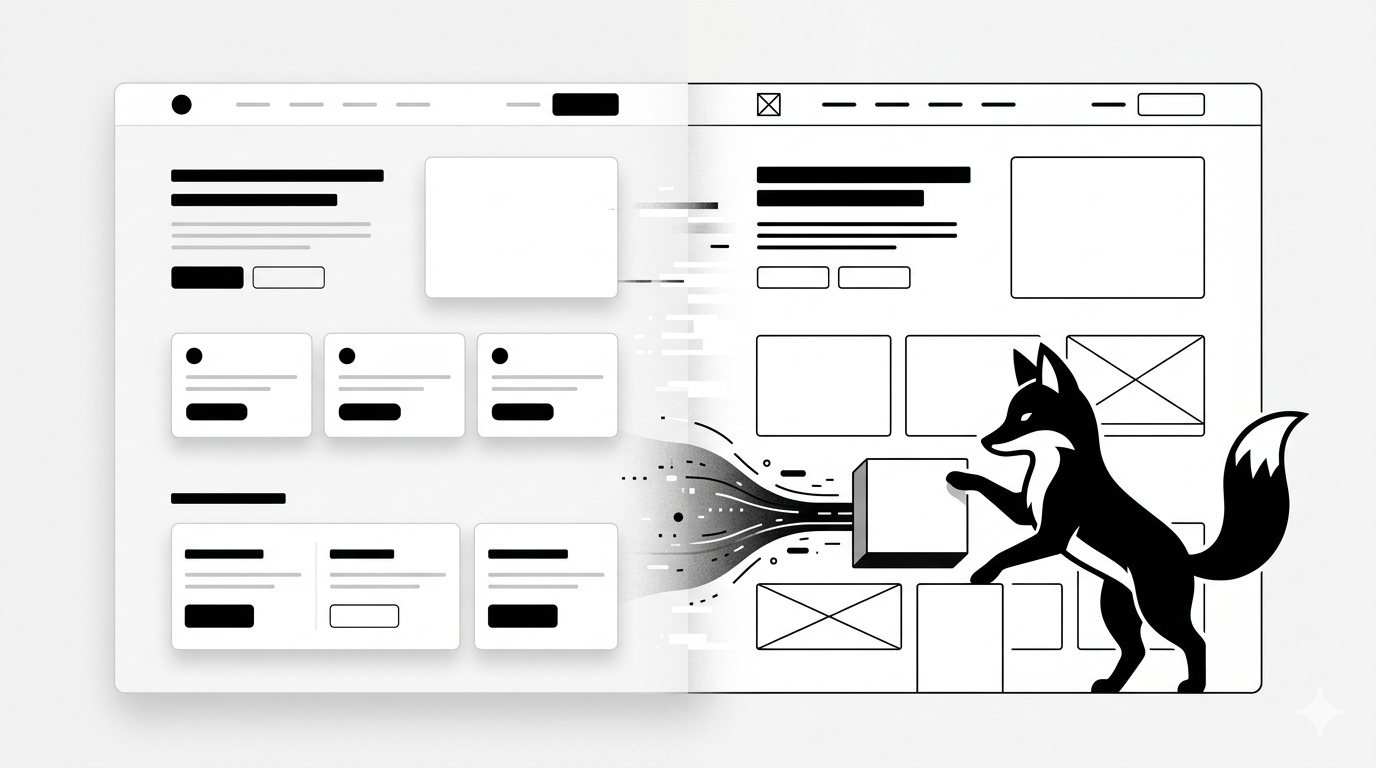
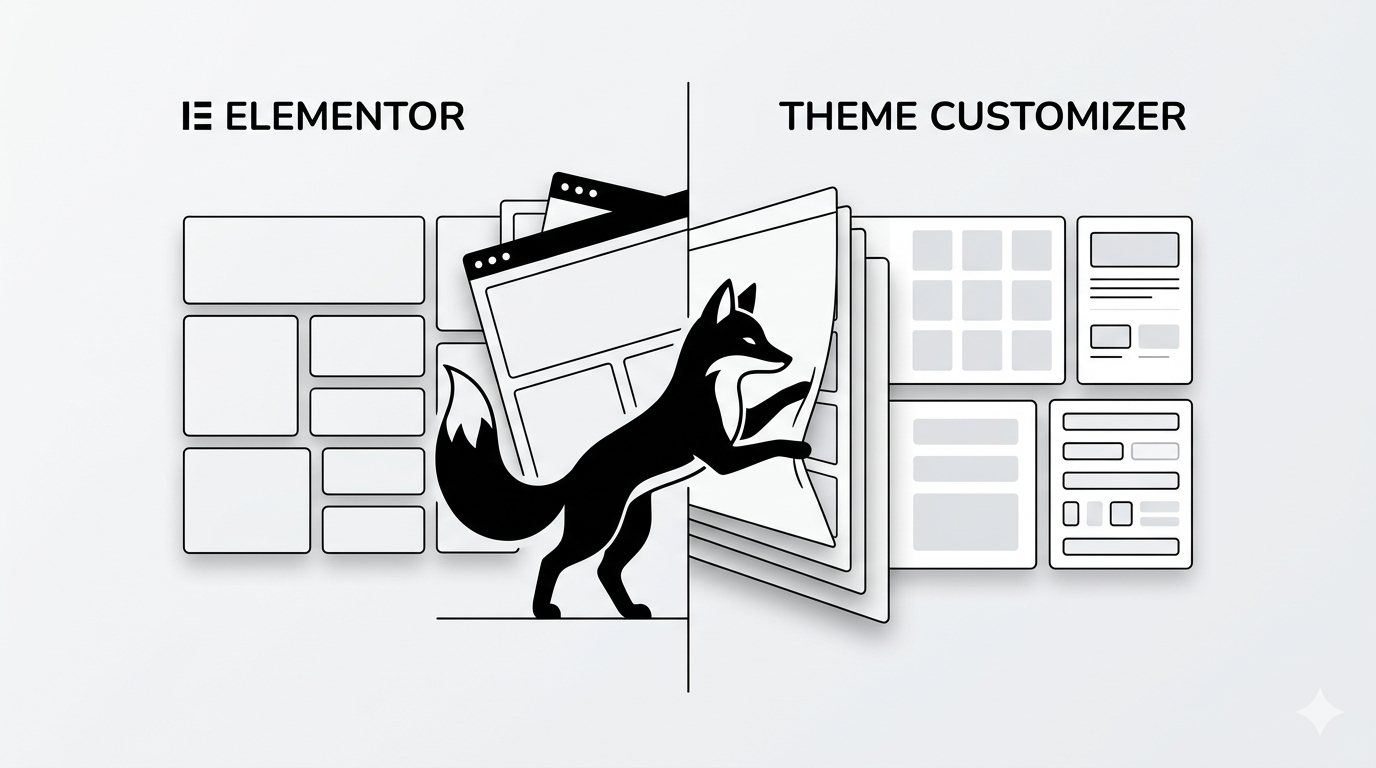
Staring at a completely broken, unstyled Elementor page right after you cleared your cache is a heart-stopping moment.
Don’t panic—your design isn’t gone. This is an incredibly common WordPress glitch caused by temporary miscommunications between your caching system and your CSS files.
In this guide, I will walk you through the exact steps to force your Elementor styles to reappear.
Why Elementor Styles Disappear After Cache Clearing
Elementor relies on dynamic CSS files stored across your server and multiple caching layers.
When you wipe that cache, things can get out of sync:
- Elementor fails to automatically regenerate the necessary CSS files
- Your caching plugin mistakenly serves an empty or outdated stylesheet
- Your CDN (like Cloudflare) stubbornly holds onto old, broken versions
- Your server simply isn’t rebuilding the styles fast enough
The Result: A perfectly good website that looks completely broken or unstyled to your visitors.
STEP 1 — Regenerate Your Elementor CSS (The Most Important Fix)
Start here, because this solves the problem 90% of the time. Navigate to your WordPress dashboard:
- Go to Elementor → Tools
- Click the “Regenerate CSS & Data” button
This manually forces Elementor to rebuild all of your missing stylesheets from scratch.
STEP 2 — Clear Every Single Caching Layer
You can’t just clear one cache; you have to clear them all to ensure the new CSS loads properly. Make sure you purge:
- Your primary WordPress caching plugin (WP Rocket, LiteSpeed, etc.)
- Your local browser cache
- Your hosting provider’s server-level cache
- Your CDN cache (like Cloudflare)
Important: Leaving even one of these layers uncleared can keep your site looking broken.
STEP 3 — Temporarily Disable CSS Optimization
Aggressive speed optimization plugins often combine or minify CSS files, which can accidentally break Elementor’s styling.
Temporarily turn off these settings in your optimization plugin:
- CSS minification
- Combining CSS files
- “Remove unused CSS” features
Refresh your live site. If it looks normal, you know your optimization plugin is the culprit.
STEP 4 — Troubleshoot Cloudflare and CDN Conflicts
If you route your traffic through Cloudflare or another CDN, it might be serving a cached version of the broken CSS.
- Purge your entire CDN cache completely
- Temporarily disable features like Cloudflare’s Rocket Loader
- Check if your live site is still pulling outdated stylesheets
A CDN cache mismatch is one of the most frequent causes of this error.
STEP 5 — Rule Out a Plugin Conflict
Sometimes a rogue add-on or performance plugin directly interferes with how Elementor loads its styles.
To test this without accessing the dashboard, you can disable your plugins via your terminal or file manager:
mv wp-content/plugins wp-content/plugins-disabled
Reactivate your plugins one by one until the layout breaks again—that’s your conflicting plugin.
STEP 6 — Change the Elementor CSS Loading Method
Elementor gives you two ways to load its styles. Switching between them can instantly kickstart your missing CSS.
- Navigate to Elementor → Settings → Advanced
Find the CSS Print Method and switch between:
- Internal Embedding
- External File
Save your changes and refresh your page to see if the styles populate.
STEP 7 — Fix File Permissions (Advanced)
If Elementor physically cannot write the new CSS files to your server, your styles will never generate.
- Set all Folders to: 755
- Set all Files to: 644
Incorrect server permissions will permanently prevent Elementor from generating its styles.
Avoid These Common Troubleshooting Mistakes
- Only clearing your browser cache while ignoring the server or CDN layers
- Forgetting to hit the “Regenerate CSS” button before clearing the cache
- Leaving heavy optimization plugins turned on while trying to debug
- Assuming the design is permanently deleted (it’s just hidden!)
The Final Result
- Your Elementor design is fully restored
- Missing fonts, colors, and layout structures are back to normal
- Your site looks consistent across all pages and devices
- You have a stable workflow for the next time you clear your cache
Keep Optimizing Your WordPress Site
- How to fix Elementor when it stops working or breaks your layout
- Why your WordPress site is slow (even with caching plugins installed)
- How to easily track down and fix CSS conflicts in WordPress
- The ultimate Cloudflare setup guide for WordPress websites
✔ A broken Elementor layout right after clearing your cache is almost never a true bug—it is simply a temporary synchronization issue between your caching layers and CSS files.
Share: